
| Index >> Technical support & download >> Application notes
AN21: Controlling of IP Relay using program
NetCat
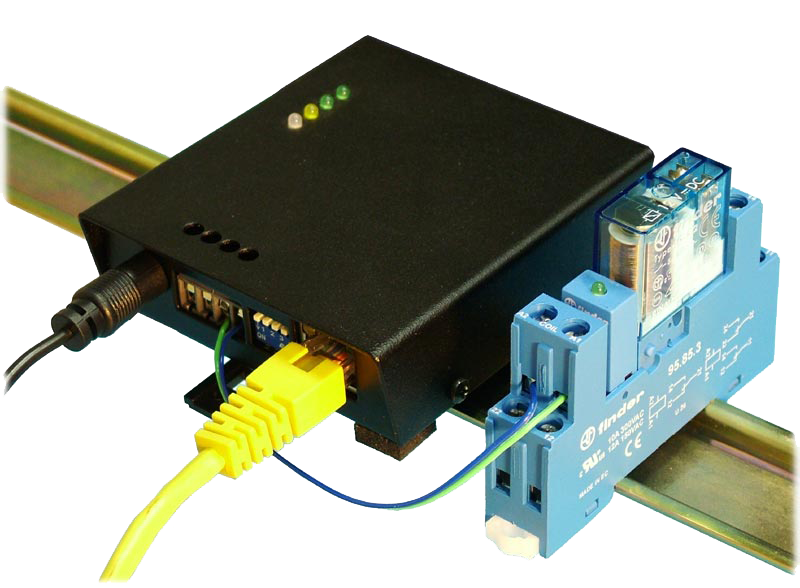
Besides the RS-232 serial port, the IP Relay device contains also another two relays whose switching on/off can be controlled over Ethernet (TCP/IP). Application Note 21 describes how to control relays from the Windows command line sending right sequence using program NetCat.
Controlling
of IP Relay output using command line is useful when you need switch
relay on/off, for example from the another program (.bat file). Example
application can be switching on the warning siren via Ethernet, when
any program detected crossing of appropriate temperature, any observed
parameter of gas or any similar parameter.
NetCat
NetCat is simple utility, which send data included in
the file to the TCP/IP connection to the specified IP adress. This
utility is distributed as freeware and can be downloaded from the home
page http://netcat.sourceforge.net/
,where you can find version for operating systems Linux, FreeBSD,
NetBSD, SunOS/Solaris a MacOS X or from http://www.vulnwatch.org/netcat/
, where you can find version for Windows. Application can be used for
direct sending commands to the appliance. Run NetCat.exe and by typing
appropriate commands send the data (see below picture). List of all
commands you can find in NetCat manual.

In our application we create NVT
command-file, which will switch on relay 1 on the IP Relay. This file
we will save as “set_rel_1.bin“, and then send to IP address
of IP Relay using NetCat and so we control outputs of Relay.
Creating of file with command
For sending command, which will switch on for example
relay on the channel 1 create a file in the NetCat directory. File will
only contain appropriate NVT command. Table of commands you can find in
manual for appliance, but be careful commands are in binary form so you
must switch your editor to HEX mode as seen in the picture below. And
save it for example as “set_rel_1.bin“.

Other commands for controlling IP relay
| Action |
NVT
command |
| Switch on Relay 1 |
FF FA 2C 32 25 FF FO |
| Switch off Relay 1 |
FF FA 2C 32 15 FF FO |
| Switch on Relay 2 |
FF FA 2C 32 26 FF FO |
| Switch off Relay 2 |
FF FA 2C 32 16 FF FO |
| Switch on LED3 – yellow |
FF FA 2C 32 10 FF FO |
| Switch off LED3 - yellow |
FF FA 2C 32 20 FF FO |
| Switch on LED4 – red |
FF FA 2C 32 11 FF FO |
| Switch off LED4 – red |
FF FA 2C 32 22 FF FO |
| Switch on LED4 – green |
FF FA 2C 32 17 FF FO |
| Switch off LED4 – green |
FF FA 2C 32 27 FF FO |
For sending other commands (more in table) you just create file with
corresponding NVT command. And then you send it in the same way.
Note: Compete list of commands will you find in manual for
appliance…
Sending file to the appliance
Into the command line write the command:
nc parameters xxx.xxx.xxx.xxx yy
< file name
- xxx.xxx.xxx.xxx marks an IP address of appliance you
want to send data
- yy marks port on which appliance communicate
- parameters you may leave this space empty or fill it
with one or more parameters
- -d will close window with the command line
- -n NetCat will accept only digits in IP address
- -u connection in UDP mode instead of TCP
- -v will write basic information about connection
- -w will set time limit for trying to make a
connection and also the network inactivity
e.g. “nc –d 192.168.1.55 23 < setrel1.bin”
will send command for switching on relay on channel 1 (this command is
saved in file set_rel_1.bin) to the appliance with IP address
192.168.1.55 over port 23.
Creating executable file
If you don’t want type every time command to the
command line, you can create file, which will contain the appropriate
text. For example “nc –d 192.168.1.55 99 < setrel1”.
And save it as “filename.bat”.
Executing this file will cause the same thing, as you write the
command, which this file contain, into the command line.
Note: If NetCat will not
do what you want let’s try NVT sequence in our application Hercules –
TEST tab.
Download
Related pages
Related Products and pages
- IP Relay
IP Relay - 1x RS-232 serial port a 2 relays with
contacts on a terminal block.
Remote RS-232 serial port that can be used to switch on/off or reset
remote device via Ethernet.
- I/O Controller
I/O Controller is an Ethernet enabled unit containing 8 digital inputs,
8 digital outputs and RS-232/485 serial interface. All the interfaces
are accessible over a network using the M2M protocol
on TCP/IP.
- Hercules
setup
Useful serial port terminal (RS-485 or RS-232 terminal) , UDP/IP
terminal and TCP/IP Client Server terminal.
- Other Application Notes
I'm looking forward your comments and technical enquiry..
Zdeněk Stupňáněk -
Stupnanek@ hwg.cz
|